
Guides · Getting started
Getting startedComing from WWMIPlay with OvertoneAdd your modsMix outfits and loadoutsTimbre on a Mac or LinuxHow to create a modEdit a mod in BlenderPaint a mod's texturesWrite a descriptionWhen a mod does not draw rightGuides/Start
Getting started
Install Timbre, add your first mod and see it in Wuthering Waves.
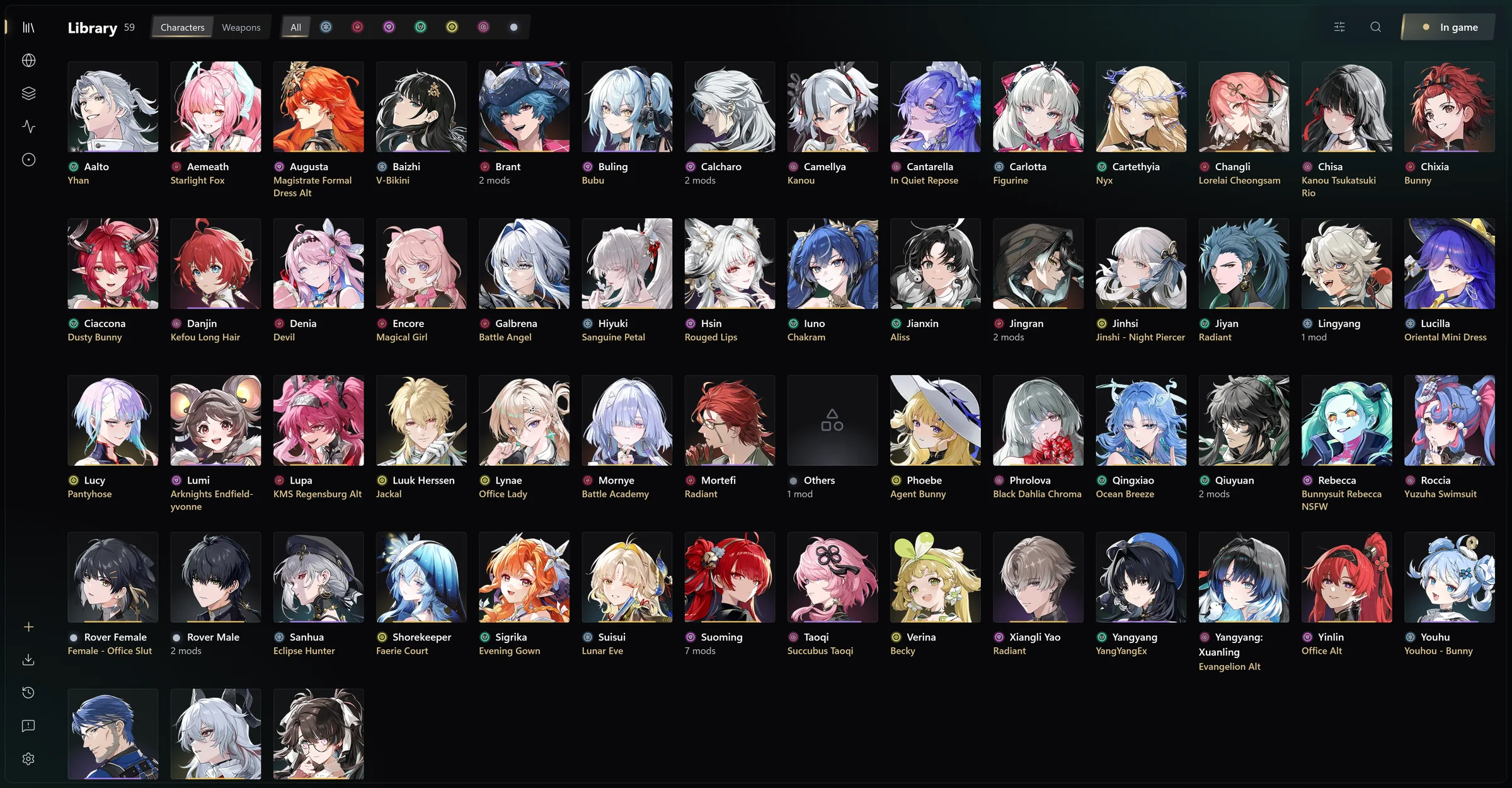
In about ten minutes you have Timbre installed, a mod in your library, and that mod drawn on its character in game.
Overtone draws mods inside the game. Timbre is the app where you add, turn on and edit them, and it installs and updates Overtone for you. You only download Timbre.
Modding breaks Kuro Games' terms of service, and the game runs anti-cheat. Play at your own risk.
- Windows 10 or 11.
- Wuthering Waves, set to DirectX 12 in its launcher (the default).
- A mod to try, as the link to its GameBanana page.
On a Mac or Linux, Timbre manages your mods but does not play: see Timbre on a Mac or Linux.
- Open the releases page and download
Timbre_<version>_x64-setup.exefrom the newest Timbre release. - Run it. Windows may show Windows protected your PC, because the beta is not signed yet: press More info, then Run anyway.
- Accept the beta's terms. Timbre installs for your Windows user only, with no administrator rights, and opens.
Timbre keeps your mods in one folder, your library.
- Timbre opens on No library indexed yet. Press Set the Mods folder. Timbre opens Settings → Folders.
- Check Game. Timbre usually finds the game. If the row is empty, press Choose and pick the folder that
holds
Wuthering Waves.exe. - Beside Suggested mods folder, press Use. Timbre makes an
Overtone Libraryfolder near the game, outside its launcher's folder, with aWuthering Wavesfolder inside it, and sets that as Mods.
The notice Choose the folders below at the top of Settings → Folders goes away. To choose another folder, or bring an XXMI library, see Add your mods.
- Press Add a mod.
- Turn on Wear after adding, so the mod is worn as it lands. Timbre remembers it for the next mod.
- Copy the mod's GameBanana page link, and press Ctrl+V in Timbre's window.
- Press Download.
The mod appears on its character's page in the library. Timbre files it by the character it changes, whatever the archive is called.
- Press Play. It reads Installing, then Starting.
- The first time, Timbre installs Overtone into the game's folder. If it asks Texture quality, pick the textures you downloaded in the game's launcher.
- The game starts. Go to a place where your character is on screen.
- Press Home. Overtone's overlay opens on Wardrobe. If nothing opens, see When a mod does not draw right.
- Your mod is listed under its character, with a green dot while it is on screen.
- Turn it off and on with its switch to compare it with the game's own outfit.
- Press Home again to close the overlay.
That's it: the mod is drawn, and it stays on the next time you play.
- Coming from WWMI: what changes, and what carries over.
- Play with Overtone: every key, the overlay, and other tools such as ReShade.
- Mix outfits and loadouts: several outfits on one character, and loadouts for the wheel.
- Add your mods: more ways to add mods, updates, and bringing over an XXMI library.
- How to create a mod: dump a character and edit it in Blender.
- Paint a mod's textures: tattoos, freckles, recolours and repairs, painted on the character.
- When a mod does not draw right: fixes by symptom.
Applies to Timbre 26.1028.0 and Overtone 26.1028.0.